
Units, Scale and Multi-Body Files: How the Calculator Reads Your Model
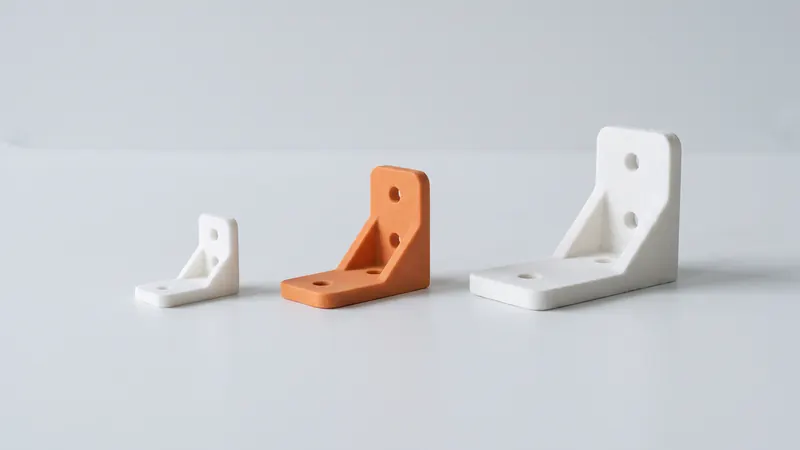
Most upload surprises have three causes: a file read in the wrong unit, a model at the wrong scale, or a file that holds several solids instead of one part. This guide explains how our instant calculator handles each of them, what it shows you, and how to prepare your files so the size, the number of parts and the price are right the first time.
The short version
- STEP files carry their unit. The calculator converts them to millimeters automatically.
- STL files carry no unit. The calculator reads them as millimeters; you can switch each STL file to inches.
- Scale is not changed by the calculator. To print a part larger or smaller, scale it in CAD and upload it again.
- Multi-body files are split into their bodies. Each body is checked and priced on its own; identical bodies are merged into one row with a quantity.
Units in STEP files
A STEP file stores its length unit together with the exact geometry. The calculator reads that unit and converts the model to millimeters, including files saved in inches. There is nothing to set: the options of a STEP part say that the unit was taken from the file. This is one reason to upload STEP when you have the CAD model; the other reasons are in STEP vs STL.
Units in STL files
An STL file is a list of triangles given as plain numbers. Whether 50 means 50 millimeters or 50 inches is not stored anywhere. The calculator therefore reads every STL as millimeters and offers a unit switch per file: millimeters or inches. Switching re-analyzes the whole file and rebuilds all its parts, with new sizes, volumes and prices.
| What you see | Likely cause | Fix |
|---|---|---|
| The part is 25.4 times too small | Exported in inches, read as millimeters | Switch the file to inches |
| The part is 25.4 times too large or does not fit | Exported in millimeters, switched to inches | Switch the file back to millimeters |
| The part is 1,000 times too small | Exported in meters | Export again in millimeters |
| The part is 10 times too small | Exported in centimeters | Export again in millimeters |
The switch offers only millimeters and inches. Files in meters or centimeters have to be exported again in millimeters. When the largest dimension of an STL part is below 2 mm, the calculator warns that the part is very small and asks whether it was exported in inches or meters.
Check the size before the price
The overview table shows the size (bounding box in millimeters) and the volume of every part. Compare one dimension with your drawing before you look at the price. A unit error is easy to spot in the volume: a part read 25.4 times too small in every direction has a volume about 16,000 times too small (25.4³ ≈ 16,387).
A part that is far too large does not fit the chamber: the calculator then says it does not fit in any orientation and does not price it. The nominal chamber of our EOS FORMIGA P 110 Velocis is 200 × 250 × 330 mm; the calculator checks the fit against the usable volume and shows it in the message. If a real part is too large, contact us about splitting it.
Scaling a model
Apart from the millimeter or inch switch for STL, the calculator prices the geometry exactly as uploaded. To print a part at another size, scale it in your CAD or mesh tool and upload the new file. Before you do, keep in mind what scaling does:
- Volume and price grow with the cube of the factor. A part scaled to twice its size has eight times the volume.
- Clearances scale too. A 0.4 mm gap scaled to 50 % becomes 0.2 mm and may fuse. Redesign fits instead of scaling them; see tolerances and clearances.
- Walls and details get thinner. Scaling down can push walls below about 0.8 mm, which the calculator flags, and escape holes below the minimum of 5 mm.
- Standard features do not scale. Threads, holes for inserts and screw seats must keep their standard sizes.
Multi-body files: how the calculator splits them
A STEP assembly or an STL can hold several solids. Measured as one part, two brackets lying apart in one file would have one huge bounding box and could appear not to fit. The calculator therefore splits every file into bodies:
- Separate solids are found. Each connected piece of the model is a candidate body.
- Touching or overlapping pieces become one part. Pieces whose bounding boxes touch or overlap are printed as one piece, for example a bushing in its hole or two solids joined face to face.
- Tiny fragments are ignored. Pieces below 1 mm³, such as stray faces, are dropped and the table says so.
- Each body is analyzed on its own: size, volume, chamber fit, layer plane, enclosed cavities and price.
- Identical bodies are merged into the quantity. Bodies with the same volume and surface area (within 0.1 %) and the same box dimensions (within 0.1 mm) form one row whose quantity is their count. Mirrored and rotated copies count as identical. You can change the quantity.
Each row is named after the file and the number of its body or bodies, and the first row of the file states how many bodies it contains and how many parts they make. A file with a single body behaves as before.
Assemblies: what to upload
- Separate parts: keep a clear gap between them, or upload them as separate files. A small part lying inside the bounding box of a larger one, for example inside a C-shaped part, is merged with it.
- One piece made of several solids: unite them in CAD before export. A body made of overlapping or nested solids gets the warning that it is priced as one piece, and overlapping volume is counted twice.
- Hardware: remove screws, metal inserts, bushings and bearings before export. Left in the file, they merge with the part and are priced as nylon.
- Print-in-place mechanisms: interlocking parts such as a hinge are printed together, and the calculator treats them as one piece, which is what you want. See print-in-place hinges.
- Hollow parts: an inner void is part of its body; enclosed cavities are priced as solid until you add escape holes. See hollow parts and escape holes.
Checklist before upload
- STEP when you have the CAD model; STL in millimeters otherwise.
- The size in the overview table matches your drawing.
- The model is at its final scale, with fits and standard features redesigned rather than scaled.
- Separate parts have a clear gap; parts meant as one piece are united.
- Screws, inserts and other hardware are removed.
- The number of parts and the quantities in the table match what you want to order.
Mesh errors such as open or non-manifold edges are covered in how to check and repair an STL file. If a model needs rework before printing, the specialists at prototype.builders can take it over.
Frequently asked questions
Why is my part 25.4 times too small after upload?
The STL file was almost certainly exported in inches. STL files carry no unit, and our calculator reads them as millimeters. Switch the file to inches in the part options and it is re-analyzed at the right size.
Does the calculator read the unit of a STEP file?
Yes. A STEP file stores its unit, and the calculator converts the model to millimeters automatically, including files saved in inches.
Can I scale a model in the calculator?
No. Apart from the millimeter or inch switch for STL files, the calculator prices the geometry as uploaded. Scale the model in CAD and upload it again, and check clearances, walls and standard features after scaling.
Why does one file show up as several parts?
The file contains several separate solids. The calculator splits it into bodies, checks and prices each one and merges identical bodies into one row with a quantity.
Why are two of my parts priced as one?
Pieces whose bounding boxes touch or overlap are treated as one part, because they would be printed as one piece. Keep a clear gap between separate parts or upload them as separate files.
What happens to identical parts in one file?
Bodies with the same volume, area and box dimensions, including mirrored or rotated copies, are merged into one row with the count as quantity. You can change the quantity.
Get an instant price
Upload STEP or STL files to the calculator and see the price of your parts in seconds: white Nylon PA 12, blasting and polishing included, optional dyeing in 61 colors, three delivery speeds. From there you send the order preview for confirmation.
Another material, an NDA or a large series? Write to us. For design help and prototype development see prototype.builders.
Get an instant price