
STEP vs STL: Which File Should You Upload for 3D Printing?
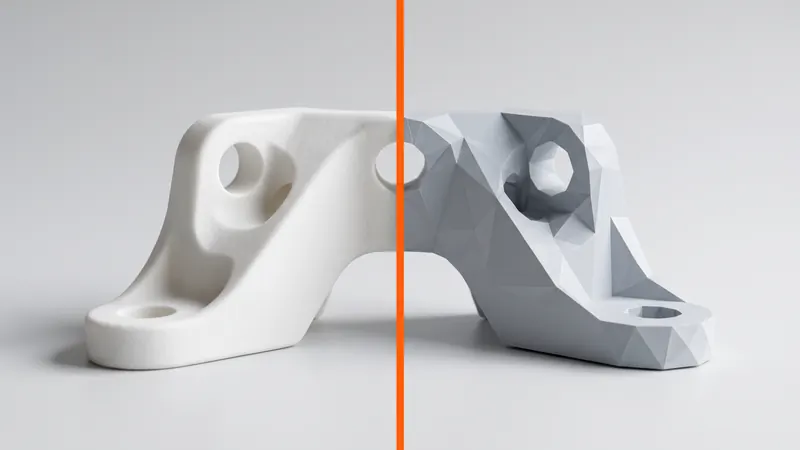
STL has been the standard file for 3D printing for decades, but most CAD systems save STEP, and many printing services accept both. The two formats describe the same part in very different ways, and the difference shows up in units, accuracy and assemblies. This guide explains what each format contains, which to choose, and how to export a file that prices and prints correctly.
The short answer
If your part comes from a CAD system, upload STEP: it carries exact geometry and its units, so nothing gets lost or scaled by mistake. If your part only exists as a mesh, from a 3D scan, sculpting software or a downloaded model, upload STL: it is the native language of mesh tools. Our calculator accepts both (.step, .stp and .stl).
What is inside each file
| STEP (.step, .stp) | STL (.stl) | |
|---|---|---|
| What it describes | Exact surfaces and solids (boundary representation), as in CAD | A surface made of flat triangles (mesh) |
| Curved surfaces | Mathematically exact | Approximated by facets |
| Units | Stored in the file | Not stored; just numbers |
| Assemblies | Several solids and their structure | Triangles only; several bodies are not labeled as such |
| Standard | ISO 10303 (AP203, AP214, AP242) | De-facto standard of 3D printing since the 1980s |
| Editable in CAD | Yes, as solids | Hardly; meshes are hard to modify precisely |
| File size | Compact for simple parts | Grows with the fineness of the mesh |
| Typical source | CAD systems | Mesh tools, 3D scans, sculpting, model libraries |
Why STEP is usually the better choice
Units cannot get mixed up
An STL file contains only coordinates. Whether "25.4" means millimeters or inches is not in the file. A part designed in inches and read as millimeters comes out 25.4 times too small; the opposite mistake makes it enormous. A STEP file declares its units, so the size is read correctly.
Curves stay exact
In STL, a hole is a polygon. If the export is coarse, a 10 mm hole becomes a visible many-sided prism, and the printer reproduces the facets faithfully. A STEP file contains the exact cylinder; the conversion into the fine mesh the printer needs happens on our side with a known, fine setting.
Assemblies remain separate parts
Many CAD exports contain several bodies: a housing and its lid, a jig and its bushings, several variants side by side. STEP keeps them as separate solids. In an STL, everything is one cloud of triangles, and separate bodies have to be recognized from the geometry.
When STL is the right choice
- The part was sculpted, scanned or generated (lattices, topology optimization) and has no CAD solid.
- You downloaded the model as STL and have no source file.
- Your software exports STEP poorly, for example as a mesh wrapped in STEP, which brings no advantage.
STL works perfectly well when exported carefully. The next section shows how.
How to export a good STL
- Use millimeters. It is the common default for 3D printing and avoids scaling errors.
- Choose a fine resolution. CAD systems call it chord height, deviation or tolerance (how far a facet may deviate from the true surface) and angle tolerance. A deviation of about 0.01 mm and a small angle give smooth curves without huge files.
- Export as binary STL. It is several times smaller than ASCII STL with the same geometry.
- Export solids, not surfaces. The mesh must be closed: every edge shared by exactly two triangles. Open surfaces cannot be printed as a volume.
- Check the result. Open the STL in a viewer and look at curved faces and small holes before uploading.
How to export a good STEP
- Export solid bodies. Surface bodies, sketches and construction geometry are not needed.
- AP214 or AP242 are widely supported; AP203 works too.
- Hide what should not be printed. Screws, bearings and reference geometry in an assembly will otherwise be read as parts.
- One file per part or one assembly file: both work; the calculator splits the bodies.
How our calculator reads both formats
The analysis runs in your browser when you upload a file:
- STEP is converted into a very fine mesh (0.005 mm linear deflection) and its units are read from the file, so inch models come out at the right size.
- STL is read as millimeters. If your file is in inches, switch the unit for that file and the size and price update.
- Several bodies in one file become separate parts, each checked for fit and priced on its own; identical bodies are grouped with a quantity.
- Mesh checks: open edges, non-manifold edges, faces with inconsistent orientation, inverted normals and enclosed voids are reported. An open mesh is still priced, with a warning.
- Design review: thin walls and enclosed cavities that would trap powder are flagged; see the SLS design guidelines.
For STEP files, volume and surface area are taken from the fine mesh; on the reference test parts of the calculator the deviation from exact values is a few hundredths of a percent at most, on curved surfaces, and zero on flat ones.
Common upload problems and fixes
| Symptom | Likely cause | Fix |
|---|---|---|
| Part is tiny or huge | STL in inches read as millimeters, or the other way round | Switch the unit for the file, or export STEP |
| Visible facets on curved faces | Coarse STL export | Export with a smaller deviation and angle, or use STEP |
| Part "does not fit" | Wrong units, or the part is larger than the 200 × 250 × 330 mm chamber | Check the units; split large parts into sections |
| Warning about open edges | Surfaces exported instead of a solid | Export the solid body, or repair the mesh |
| Warning about enclosed cavities | Hollow part without escape holes | Add at least two escape holes of at least 5 mm |
| Screws and bearings appear as parts | Purchased parts left in the assembly | Hide or remove them before export |
What about 3MF, OBJ and native CAD files?
3MF is a newer mesh format that stores units and several objects, and OBJ is common in visualization. Native CAD files depend on the software and its version. Our calculator reads STEP and STL, which every CAD and mesh tool can export.
When the file is ready, upload it to the instant SLS calculator: you see the 3D preview, the fit in the printer, the design review and the price. More about accuracy in SLS tolerances and clearances; if you still need the model itself, the specialists at prototype.builders design parts and prototypes.
Frequently asked questions
Is STEP or STL better for 3D printing?
STEP is better when the part comes from CAD: it stores exact geometry, units and separate bodies. STL is the right choice when the part only exists as a mesh, for example from a 3D scan or sculpting software.
Does an STL file have units?
No. An STL file stores only coordinates, so the same file can be read as millimeters or inches. Our calculator reads STL as millimeters and lets you switch a file to inches.
What resolution should I use when exporting STL?
Export as binary STL in millimeters with a deviation (chord height) of about 0.01 mm and a small angle tolerance. That gives smooth curves without very large files.
Can I upload an assembly as one STEP file?
Yes. The calculator splits the file into its bodies, checks and prices each one separately and groups identical bodies with a quantity. Hide screws and other purchased parts before export.
Which file formats does the SLS calculator accept?
STEP (.step, .stp) and STL (.stl). Several files can be uploaded at once.
What does an open edges warning mean?
The mesh is not closed, usually because surfaces were exported instead of a solid. The part is still priced, but you should export the solid body or repair the mesh before ordering.
Get an instant price
Upload STEP or STL files to the calculator and see the price of your parts in seconds: white Nylon PA 12, blasting and polishing included, optional dyeing in 61 colors, three delivery speeds. From there you send the order preview for confirmation.
Another material, an NDA or a large series? Write to us. For design help and prototype development see prototype.builders.
Get an instant price