
How to Check and Repair an STL File Before Uploading
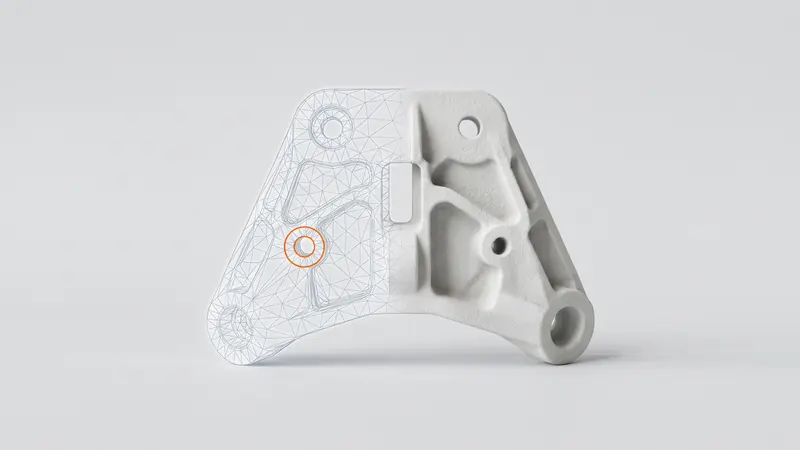
An STL file describes a part as a closed skin of triangles. When that skin has holes, extra faces or triangles pointing the wrong way, the volume becomes uncertain, the part may print with defects and the price may be wrong. Most problems take a minute to fix if you know what to look for. This guide explains the common STL errors, how our calculator detects them, and how to repair or avoid them before you upload.
What a good STL looks like
A printable STL is a closed, manifold surface: every edge belongs to exactly two triangles, all triangles face outward, the skin has no holes, and separate parts do not overlap. Only then is the volume well defined, and only then can the printer software decide reliably what is inside the part and what is not.
The common errors and how to fix them
| Error | What it means | Typical cause | Fix |
|---|---|---|---|
| Open edges (holes) | An edge belongs to only one triangle; the skin is not closed | Missing faces, scans, surfaces exported instead of solids | Re-export the solid from CAD; in a mesh tool, fill holes |
| Non-manifold edges | An edge belongs to more than two triangles | Touching bodies, internal faces, bad Boolean operations | Merge bodies properly in CAD, remove internal faces |
| Inconsistent normals | Neighboring triangles disagree about which side is outside | Mesh editing, mixed sources | Unify or recalculate normals |
| Inverted part | All triangles point inward | Export settings, mirrored geometry | Flip all normals |
| Overlapping or nested shells | Several solids inside or through each other | Assemblies exported as one mesh, unfinished unions | Unite the solids in CAD before export |
| Wrong units | The part is 25.4 times too large or too small | Export in inches, read as millimeters | Switch the file to inches in the calculator or re-export in mm |
| Too coarse tessellation | Visible facets on round surfaces | Low export resolution | Export with a finer chord tolerance, or upload STEP |
How our calculator checks your file
When you upload an STL or STEP file, the analysis runs in your browser. After merging identical vertices it checks the mesh for:
- open edges (edges with only one face),
- non-manifold edges (edges with more than two faces),
- edges whose two faces disagree in winding, and globally inverted normals,
- shells, including inward shells that enclose voids.
A mesh that is not closed is still priced, with a red warning, because its volume is uncertain. The calculator also splits a file into its bodies, checks and prices each body separately and groups identical bodies with a quantity. A body made of several overlapping or nested solids gets a warning that it is priced as one piece. Enclosed cavities trigger a separate warning, because powder cannot be removed from them.
Step by step: from CAD to a clean upload
- Export from the solid, not from surfaces. A closed solid in CAD gives a closed mesh.
- Prefer STEP when you have the CAD model. It carries exact geometry and units; the calculator converts it into a very fine mesh. The comparison is in STEP vs STL.
- For STL, use millimeters and a fine resolution. A small chord tolerance and angle keep round surfaces smooth without making the file huge.
- Unite bodies that belong together before export; keep bodies that are separate parts apart, with a gap.
- Run the check of your CAD or mesh tool and repair what it reports: fill holes, unify normals, remove internal and duplicate faces.
- Upload and read the analysis. Check the dimensions, the number of bodies, the warnings and the design review.
File size and resolution
More triangles are not always better. A very coarse mesh turns holes into polygons and round surfaces into facets that the printer reproduces faithfully. A very fine mesh adds nothing the printer can show, because layers are about 0.12 mm thick (EOS, PA 2200 process), but makes files slow to upload and analyze. A chord tolerance in the range of a few hundredths of a millimeter is a good compromise for most parts. With STEP you do not need to choose: the calculator converts the exact geometry into a very fine mesh itself.
Scans and downloaded models
Meshes from 3D scans and from model libraries are the most common source of errors: holes where the scanner could not see, thin or self-intersecting areas, millions of triangles. Typical repairs are hole filling, removing small disconnected pieces, making the mesh solid and reducing the triangle count to a sensible level. After repair, check that walls are still thick enough to print; the guide SLS design guidelines lists minimum features.
Errors that are design problems, not mesh problems
Some warnings mean the file is fine but the design does not suit SLS:
- Enclosed cavities: a closed hollow space traps unfused powder. Add escape holes or make the part solid.
- Thin walls: the calculator flags solid areas thinner than about 0.8 mm, which may not print reliably.
- Size: the part must fit the 200 × 250 × 330 mm chamber of our EOS FORMIGA P 110 Velocis; the calculator shows the fit.
Accuracy and fits are covered in SLS tolerances and clearances.
Checklist before upload
- Closed solid, no open edges.
- No non-manifold edges or internal faces.
- Normals consistent and pointing outward.
- Units in millimeters (or switched to inches in the calculator).
- Bodies united where they belong together, separated where they do not.
- Fine enough tessellation for round surfaces, or STEP instead.
- No enclosed cavities without escape holes.
If a model needs more than a quick repair, for example rebuilding a scan into a printable solid, the specialists at prototype.builders can take it over.
Frequently asked questions
How do I know if my STL file is broken?
Upload it to our calculator: the analysis runs in your browser and flags open edges, non-manifold edges, inconsistent or inverted normals and enclosed shells. Most CAD and mesh tools also have a check or analysis function that reports the same errors.
What does non-manifold mean?
An edge shared by more than two triangles, or a surface that is not a closed skin. A printable solid needs every edge to belong to exactly two triangles. Non-manifold geometry makes the inside and outside of the part ambiguous.
Can you print an STL that is not watertight?
Our calculator still prices an open mesh, but shows a red warning, because the volume of an open mesh is uncertain. Repair the file or, better, export it again from CAD before you order.
Should I upload STEP instead of STL?
If you have the CAD model, yes: STEP describes exact surfaces, avoids most mesh errors and carries its units. The calculator converts it into a very fine mesh in your browser. STL from a scan or a mesh tool is fine when it is closed and clean.
Why is my part the wrong size after upload?
STL files carry no units. Our calculator reads STL as millimeters and lets you switch a file to inches. A part 25.4 times too small or too large was almost always exported in inches.
Why does the calculator show several parts for one file?
The file contains several separate bodies. The calculator splits the file into its bodies, checks and prices each one and groups identical bodies with a quantity. If the bodies belong together, connect them in CAD.
Get an instant price
Upload STEP or STL files to the calculator and see the price of your parts in seconds: white Nylon PA 12, blasting and polishing included, optional dyeing in 61 colors, three delivery speeds. From there you send the order preview for confirmation.
Another material, an NDA or a large series? Write to us. For design help and prototype development see prototype.builders.
Get an instant price